

Before you start
- You must already be inside Impulso Pro from a computer.
- The Impulso AI button appears in the top bar of the app.
- The panel may show previous conversations and prepared actions for review.
- Do not use Approve and send until you confirm that the action, details, and customer are correct.
1. Find the Impulso AI button
- Open any main screen in Impulso Pro.
- Look at the top bar, near search and your account shortcuts.
- Find the Impulso AI button.
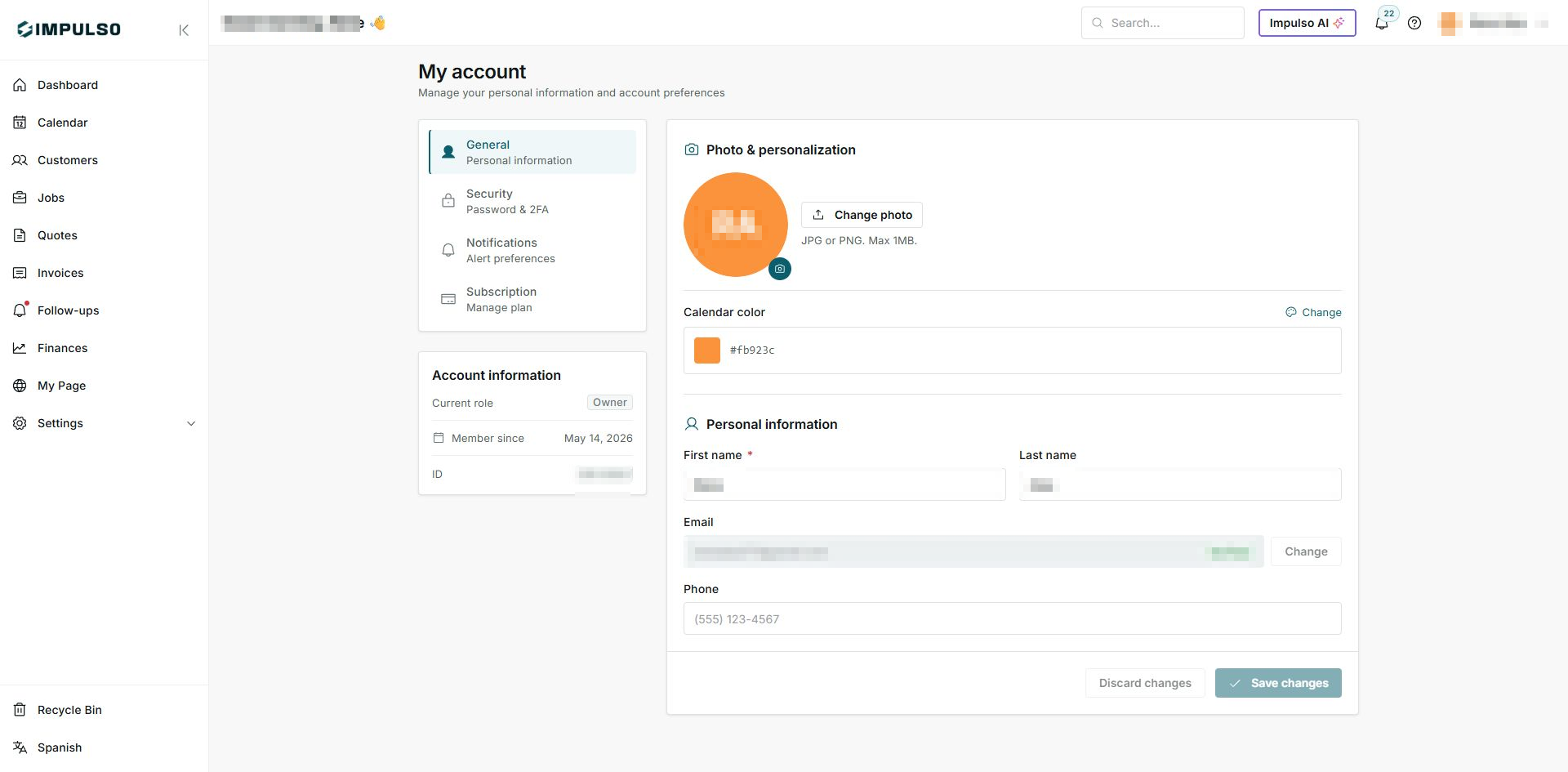
Personal account details are hidden in this guide for privacy.
2. Open the panel
- Click Impulso AI.
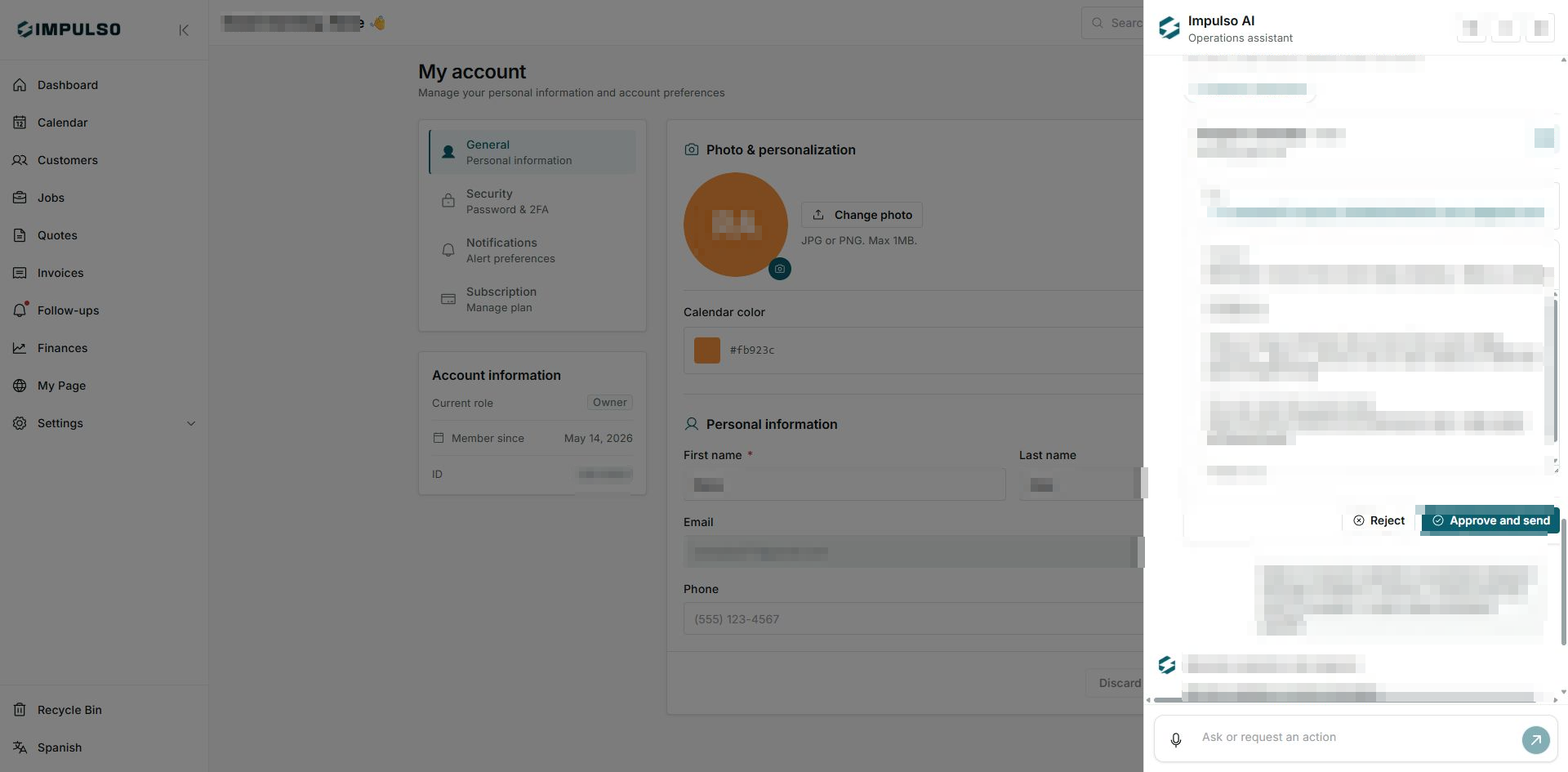
- Impulso Pro opens the assistant panel from the right side.
- The screen you were working on stays visible in the background so you keep context.
3. Start a question or request
- Use the bottom field that says Ask or request an action.
- Write a specific question, such as a customer question, quote question, or pending task.
- Review what you wrote before sending it.
- If the request could change something important, wait for Impulso Pro to ask you to review it before applying the action.
4. Review answers and actions
- Read the full answer before continuing.
- If Impulso AI prepares an action, review the customer, dates, amounts, message, and destination.
- Use Reject if the action is not ready or does not match what you need.
- Use Approve and send only when everything is correct.
5. Close or continue
- When you are done, close the panel with the close button in the top corner.
- If you need to keep working, leave the panel open while you review the screen behind it.
- If you see an earlier conversation, first check whether it belongs to the work you are doing now.
6. States you may see
These states help you know whether Impulso AI is only suggesting something or whether an action needs review.
- Suggested
Means: Impulso AI is proposing a next step. Next step: check whether it applies to your current customer or job. Does not mean: the action already happened.
- Approval required
Means: there is a prepared action waiting for your review. Next step: confirm the details before approving. Does not mean: Impulso Pro already sent or changed something.
- Approve and send
Means: you can confirm the prepared action. Next step: use it only when everything is correct. Does not mean: you should approve every suggestion.
- Reject
Means: you can discard the prepared action. Next step: reject it if information is missing or it is not the right action. Does not mean: you lose the whole conversation.
- Not available
Means: that option cannot be used right now. Next step: try later or use another available action. Does not mean: the whole app has stopped.
- Requires setup
Means: a preference or connection needs to be completed before that action can be used. Next step: review the setup shown by Impulso Pro. Does not mean: your account cannot use Impulso AI.
- New / Unread
Means: there is something new to review in the top bar. Next step: open the matching shortcut. Does not mean: it is always an AI task.