

Before you start
- You must already be inside Impulso Pro with your user account.
- This screen manages your personal account, not the public business profile.
- To change the business name, address, logo, or details shown on quotes and invoices, go to Settings.
- Do not save changes unless you are sure the personal information is correct.
1. Open My account
- In the top right, open your user menu.
- Click My account.
- Confirm that you see My account and the text Manage your personal information and account preferences.
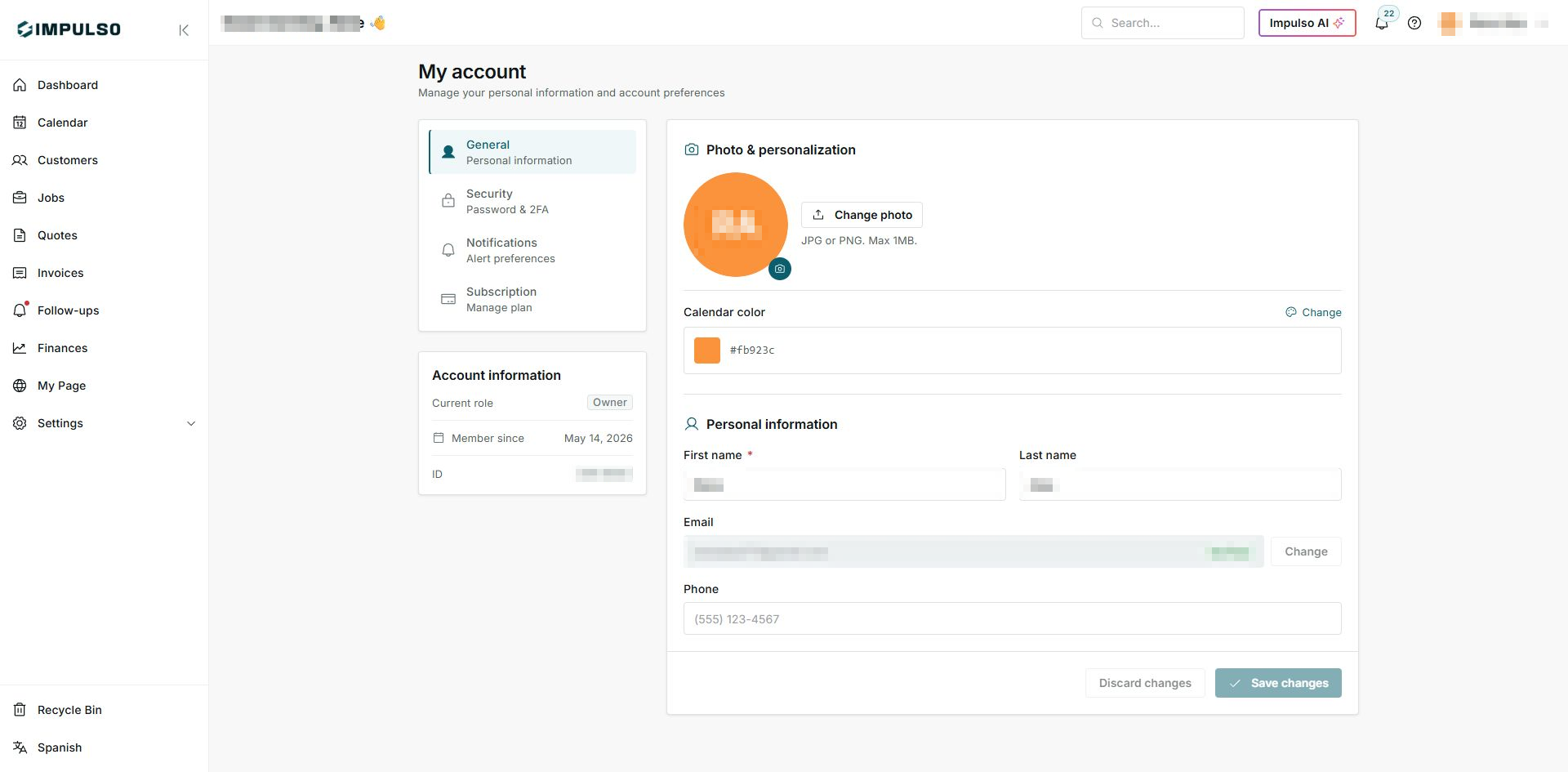
Personal details are protected in this guide for privacy. In your own account, you will see your real information.
2. Review the General tab
- Use Photo & personalization to change your photo or calendar color.
- Review Account information to confirm your role, member date, and user ID.
- In Personal information, review first name, last name, email, and phone.
- If you make changes, review everything before using Save changes.
3. Use the account tabs
- General: personal information, photo, calendar color, and basic details.
- Security: password and account security options.
- Notifications: alert preferences.
- Subscription: plan and billing access, depending on your role.
If you do not see a tab or action, it may depend on your role on the team.
4. Use the user menu
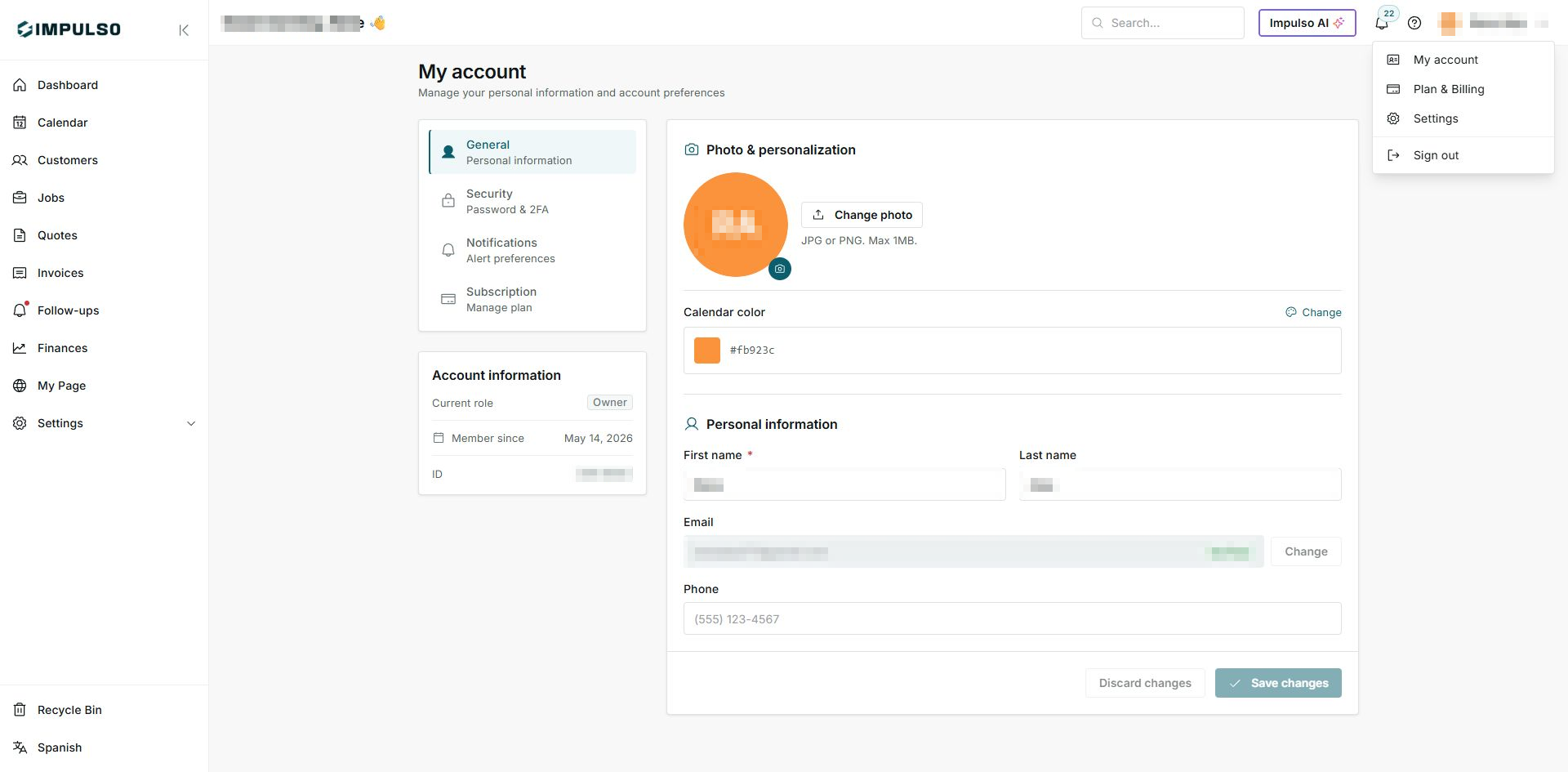
- Click your name or avatar in the top right.
- Use My account to return to this screen.
- Use Plan & Billing or Settings if you need to manage business options.
- Use Sign out only when you want to leave Impulso Pro in that browser.
5. Save or discard changes
- After editing a personal detail, check that it is correct.
- Click Save changes to apply the update.
- If you do not want to keep what you changed, use Discard changes.
- If an error appears, review the field shown and try again.
6. States you may see
These states help you know what you can change and what needs attention.
- Owner
Means: your user has the owner role for the business. Next step: manage owner-level options when needed. Does not mean: every team member will see the same actions.
- Verified
Means: the account email is confirmed. Next step: keep that email current. Does not mean: the business profile is complete.
- Unsaved changes
Means: you edited something and have not saved it yet. Next step: save or discard. Does not mean: the change already applied.
- Saved
Means: Impulso Pro saved the update. Next step: continue working. Does not mean: you changed business or document details.
- Error
Means: Impulso Pro could not save or load part of the account. Next step: review the detail, try again, or ask for help. Does not mean: you lost access to the account.