

Before you start
- Use the email connected to your Impulso Pro account or team invitation.
- Check your inbox and spam folder after requesting the link.
- If you use Google to sign in, go back to the sign-in page and use Continue with Google.
1. Open password recovery
- On the sign-in page, click Forgot your password?.
- You can also go directly to app.impulsopro.io/en/forgot-password.
- Confirm that you are on the Reset your password page.
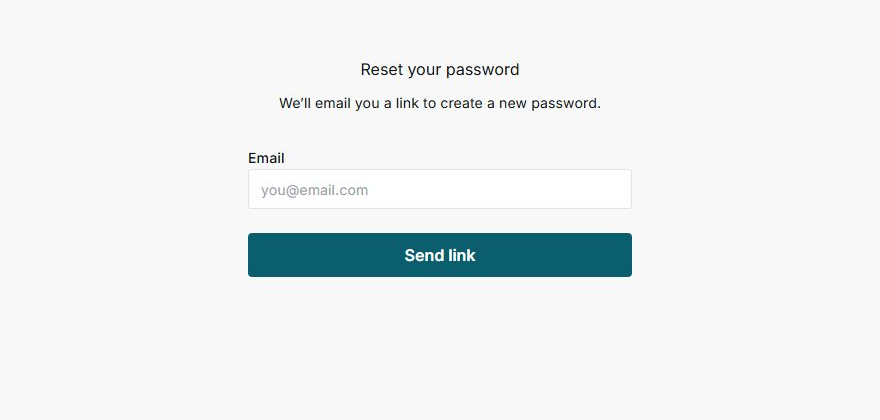
The page asks only for your email and shows the Send link button.
2. Request the link
- Enter your Email.
- Click Send link.
- Open your email and look for the recovery message.
- Follow the link in the email to create a new password.
Note
For security, some screens may not confirm whether that email exists. Use the exact email you use with Impulso Pro.
3. After creating the new password
- Return to the sign-in page.
- Enter your email and new password.
- If you still cannot sign in, contact support.
4. Messages you may see
These messages help you understand what happened when requesting the link.
- Loading
Means: Impulso Pro is processing your request. Next step: wait a few seconds. Does not mean: you need to click the button again.
- Sent
Means: the link request finished. Next step: check your email. Does not mean: the email will always arrive instantly.
- Error
Means: Impulso Pro could not complete the request. Next step: check the email you typed and try again. Does not mean: your account was deleted.