

Before You Start
- Prepare the file in a spreadsheet and export it as .csv.
- Review repeated customers by email or phone before uploading the file.
- Use real business terms such as roofing, gutters, HVAC, or exterior painting when you write internal notes.
- Do not include passwords, full banking details, or information your team does not need to do the work.
1. Open Import CSV
- Go to Customers.
- Open the list actions menu.
- Click Import CSV.
- Read the required column guidance before selecting the file.
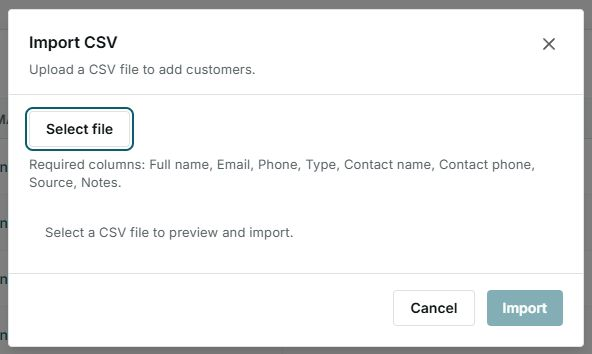
The dialog shows the columns Impulso Pro expects and keeps the import waiting until you choose a file.
2. Use the Right Columns
Your file can include these columns. Clear names help Impulso Pro read each value correctly.
| Column | What to enter | Recommendation |
|---|---|---|
| First name | Main customer name. | Required. Use the person's first name or the business name. |
| Last name | Person's last name. | Optional for companies. |
| Customer email. | Use a complete format, such as name@company.com. | |
| Phone | Main phone number. | Use a United States format, such as (214) 555-0199. |
| Type | Person or Company. | If this is blank, review the preview before importing. |
| Contact name | Contact person for a company. | Useful for property managers, builders, or commercial accounts. |
| Contact phone | Direct phone for the contact. | Use it only when it is different from the main phone. |
| Source | How the customer came in. | Referral, Google, social media, ad, or another channel. |
| Notes | Internal context for your team. | Add details such as roofing inspection, gutter repair, or follow-up. |
3. Review Each Row Before Uploading
- Confirm every row has a First name.
- Add at least an email or phone so the customer can be used for follow-up.
- Look for repeated emails or phone numbers inside the file.
- Fix incomplete phone numbers, emails without domains, and misspelled customer types.
4. File Model
This model uses United States home-service customers and normal trade terms in the notes.
| First name | Last name | Phone | Type | Source | Notes | |
|---|---|---|---|---|---|---|
| Lena | Watkins | lena.watkins@cedarhillroofing.com | (214) 555-0199 | Person | Referral | Roofing inspection for storm damage |
| Marcus | Reed | marcus.reed@northsidegutters.com | (469) 555-0188 | Person | Gutter repair estimate | |
| Avery | Parker | avery.parker@oakridgeexteriors.com | (210) 555-0155 | Person | Social media | Siding repair follow-up |
5. States and Messages You May See
These states appear when reviewing or importing the file.
- Pending
Meaning: the row is waiting for review or import. Next step: check that name, email, phone, and type are correct.
- Error
Meaning: there is a problem in the row or file. Next step: fix missing name, invalid email, invalid phone, or repeated values.
- Saved
Meaning: the customer was created after you confirmed the import. It does not mean: a message was sent to the customer.
- Import
Meaning: final action that creates customers from valid rows. Next step: use it only after reviewing the preview.
6. Before Confirming the Import
- Review the valid and invalid row summary.
- Fix rows with issues before importing.
- Do not import if you see repeated customers that already exist in Impulso Pro.
- If you were only reviewing the file, use Cancel.