

Before You Start
- Decide whether the record is an individual customer or a company.
- Have the name, phone, email, and address ready if you are creating a new customer.
- Use search or filters before creating a duplicate.
- Do not archive or change customers from list actions when you are only reviewing information.
1. Open Customers
- In the side menu, click Customers.
- Review the top cards to understand total, active, inactive, and new customers for the month.
- Use the table search when you need to find a customer by name.
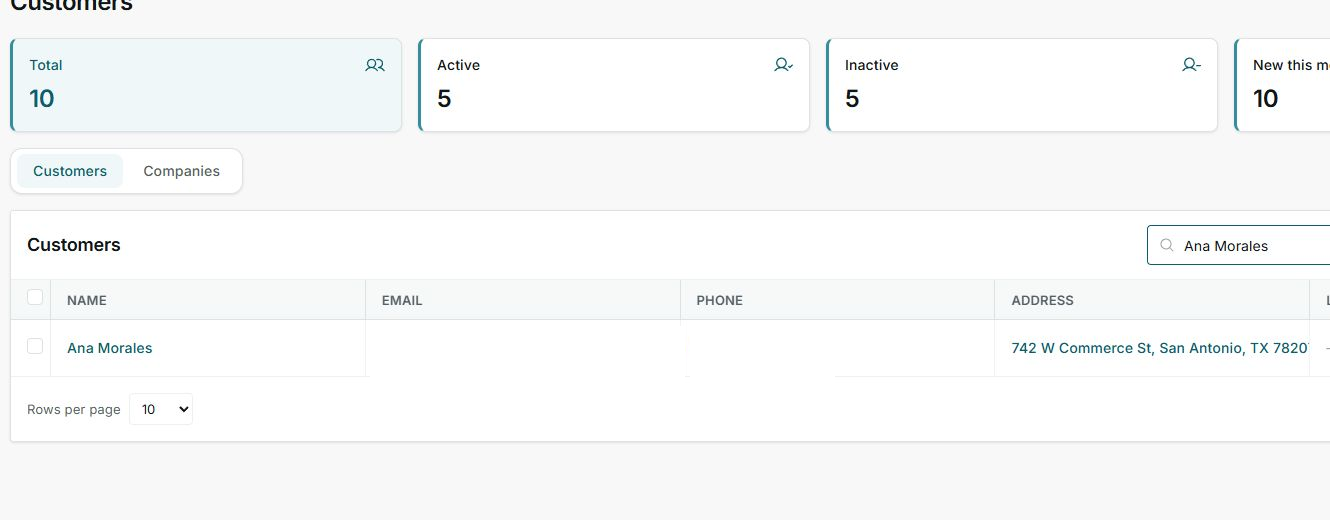
The list includes metrics, Customers and Companies tabs, search, filters, sorting, and pagination.
2. Create a New Customer
- Click Create customer.
- Complete the form with customer type, contact details, and address.
- Save only after confirming the record does not already exist.
3. Search and Open a Customer
- Type the name in Search customer.
- Review the row that remains visible.
- Click the customer name to open the detail page.
- Use the address and last job columns to confirm you chose the right customer.
4. Filter and Sort
Filters change which customers you see in the list. Sorting changes the order of results, but it does not change customer data.
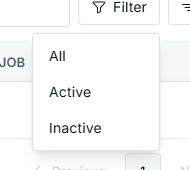
Use All, Active, or Inactive to review the right group.
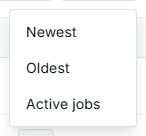
Sort by newest, oldest, or active jobs when you need to prioritize follow-up.
5. Review Customers and Companies
- Use Customers to see individual people.
- Use Companies to see businesses or organizations.
- In Companies, review the contact column when you need to know who handles that customer.
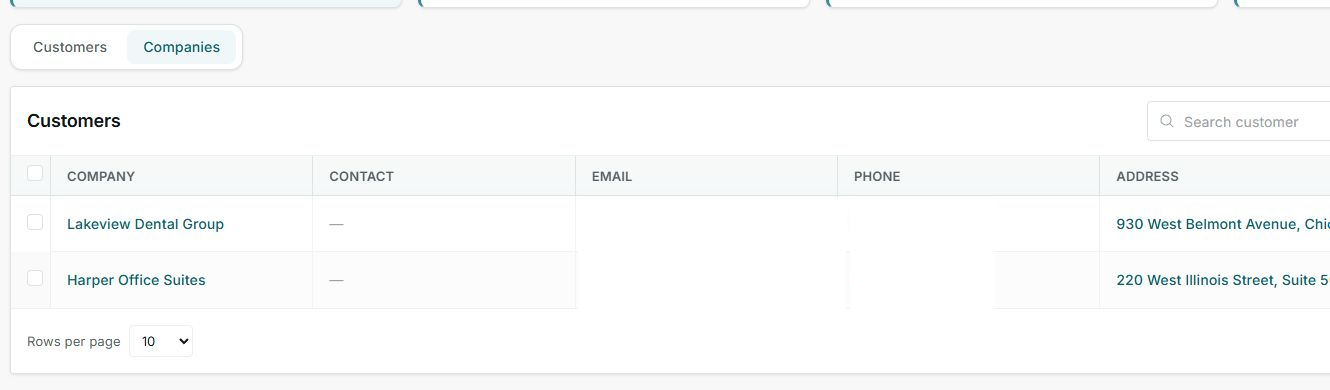
Companies live in the same Customers screen, but the table uses business-focused columns.
6. States and Controls You May See
These controls explain the list state and help you decide what to review first.
- Total
Meaning: number of records in Customers. Where it appears: top card. Next step: use filters or search if you need a smaller group. It does not mean: every customer is active.
- Active
Meaning: customers marked as active. Where it appears: top card and filter. Next step: use this group for current customers. It does not mean: they all have open jobs.
- Inactive
Meaning: customers not currently marked as active. Where it appears: top card and filter. Next step: review before creating new work. It does not mean: they were deleted.
- New this month
Meaning: customers created during the current month. Where it appears: top card. Next step: use it to review growth or recent follow-ups. It does not mean: they all have scheduled work.
- Companies
Meaning: business-type customer view. Where it appears: tabs above the table. Next step: review contact, address, and last job. It does not mean: they are internal vendors.
- Rows per page
Meaning: how many records the table shows. Where it appears: at the bottom of the list. Next step: increase the number if you want to see more rows. It does not mean: customer data changed.
7. If You Cannot Find a Customer
- Clear the search and try part of the name.
- Change the filter to All.
- Check the Companies tab if the customer is a business.
- If the customer still does not appear, create the customer only after confirming it does not exist.