

Before you start
- You must already be inside Impulso Pro from a computer.
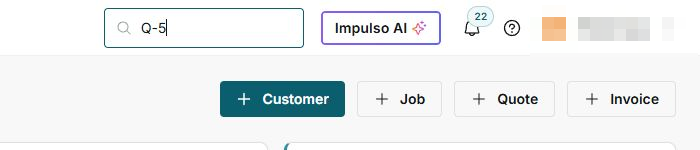
- Search and the notification bell appear in the top right.
- Typing in search does not change data; it only helps you find information.
- Do not use Mark read if you still need to keep the pending count.
1. Locate search and the bell
- Look at the top right of Impulso Pro.
- Find the Search... field.
- Next to search, you will see shortcuts like Impulso AI, the notification bell, and help.

Account details are hidden in this guide for privacy.
2. Search for a customer or document
- Click Search....
- Type a word, name, document number, or reference, for example Q-5.
- If results appear, review the type before opening one.
- Use the visible filters to narrow search by Customer, Job, Quote, or Invoice.
3. Review notifications
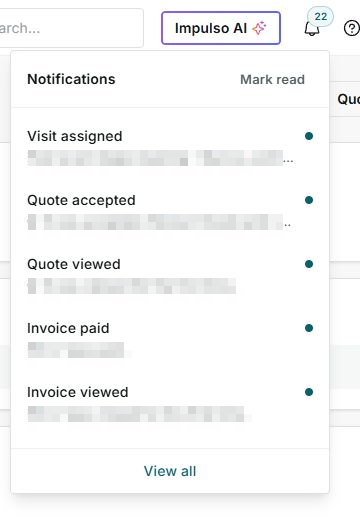
- Click the bell.
- Review the Notifications panel.
- Read the notification type, such as visit assigned, quote accepted, quote viewed, invoice paid, or invoice viewed.
- If you only want to review without changing the count, do not click Mark read.
4. Safe actions on this screen
- Searching and filtering results is safe because it only looks up information.
- Opening the bell to read notifications is safe.
- Avoid Mark read until you know you no longer need the pending indicator.
- Before opening a result or notification, confirm it matches the correct customer, job, or document.
5. States you may see
These states help you understand what needs attention and what is only a search filter.
- Search...
Means: you can type to find records. Next step: enter a reference or name. Does not mean: searching changes information.
- Customer / Job / Quote / Invoice
Means: filters that limit the result type. Next step: choose the type you need. Does not mean: you are creating a new record.
- Bell count
Means: there are pending or new notifications. Next step: open the bell to review them. Does not mean: every notification requires immediate action.
- Dot on a notification
Means: that notification is still pending review. Next step: read it and decide whether to open it. Does not mean: the related job or document has a problem.
- Mark read
Means: you can clear the pending indicator. Next step: use it only after reviewing the notifications. Does not mean: the related work is complete.
- View all
Means: you can open the full notifications list. Next step: use it when you need more history. Does not mean: notifications are automatically marked as read.