

Before you start
- Make sure you can access the email you used to create the account.
- Check your main inbox, spam, promotions, or junk folder.
- If you used Google to create the account, return with Continue with Google.
- Do not share the confirmation link with anyone else.
1. Review the verification screen
- After creating the account, Impulso Pro shows the Check your email screen.
- Confirm whether the correct email appears under We sent a confirmation link to:.
- If the email is missing or incorrect, use Use another email.
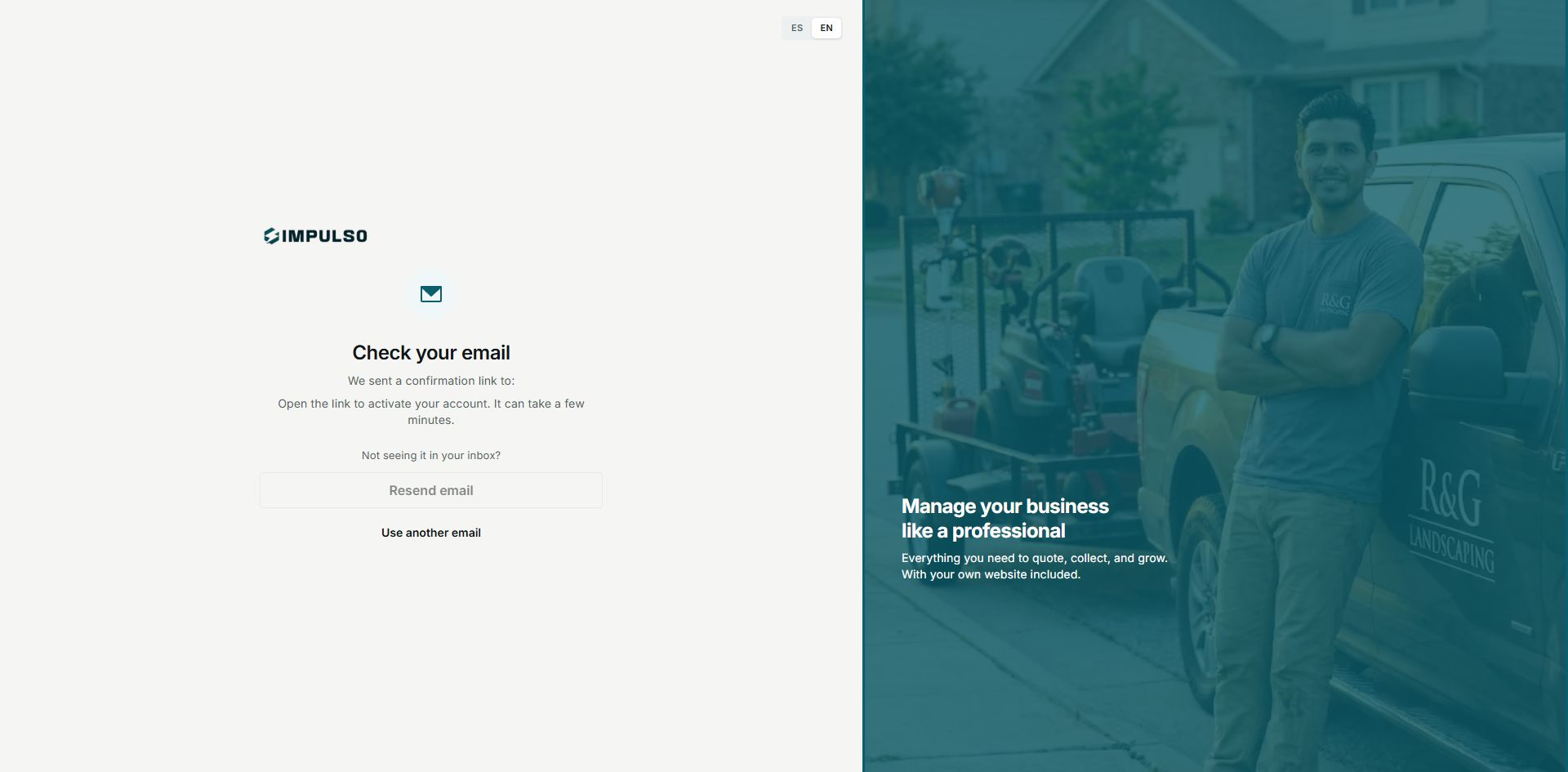
The screen says the message can take a few minutes and shows Resend email and Use another email.
2. Open the confirmation email
- Open your email in another tab or app.
- Look for a recent message from Impulso Pro.
- Open the confirmation link from that message.
- Return to Impulso Pro and continue with the steps shown.
3. If you cannot find the email
- Wait a few minutes before requesting another email.
- Check spam, promotions, or junk folders.
- If Resend email is available, use it once.
- If the button is not available or the email is incorrect, choose Use another email.
4. States you may see
These states help you decide what to do while confirming your email.
- Pending
Means: Impulso Pro is waiting for you to open the confirmation email. Next step: check your inbox and open the newest message. Does not mean: the account was rejected.
- Resend email unavailable
Means: you cannot request another message from that screen yet. Next step: wait or use another email if needed. Does not mean: the email will never arrive.
- Confirmed
Means: your email was confirmed. Next step: continue setting up your account. Does not mean: all business details are already complete.
- Error
Means: Impulso Pro could not complete confirmation. Next step: try the newest email or request another one. Does not mean: you permanently lost access.