

Before you start
- Use the same email you used to create the account or accept the invitation.
- Do not create a new account if you already belong to a business in Impulso Pro.
- If your team invited you, open the most recent invitation email.
1. Check email, password, and sign-in method
- Open app.impulsopro.io/en/sign-in.
- Confirm that your email is complete and has no extra spaces.
- Click the eye icon to check your password before continuing.
- If you normally use Google, click Continue with Google instead of typing a password.
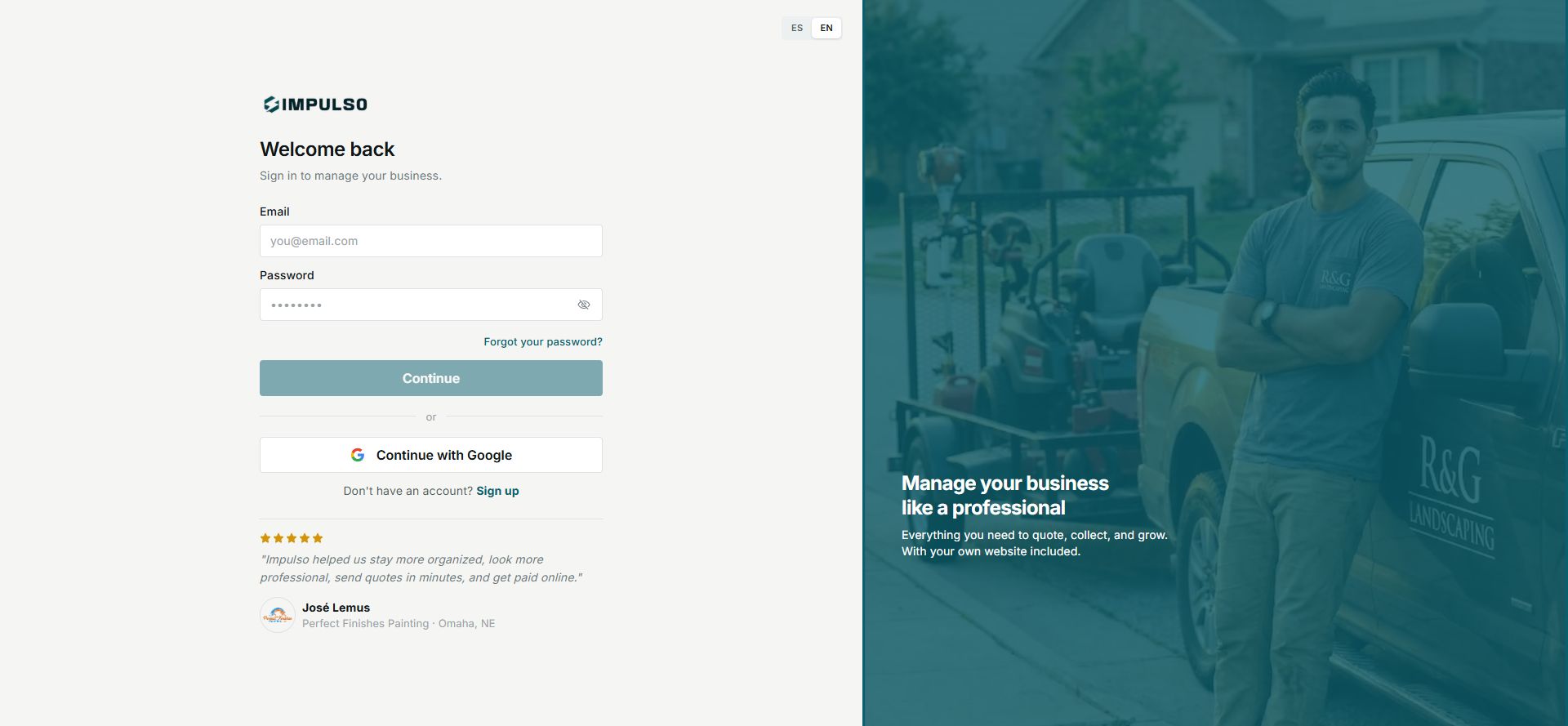
Use the same sign-in method you used when creating the account or accepting the invitation.
2. If you do not remember the password
- Click Forgot your password?.
- Enter the email for your account.
- Click Send link.
- Check your inbox and spam folder.
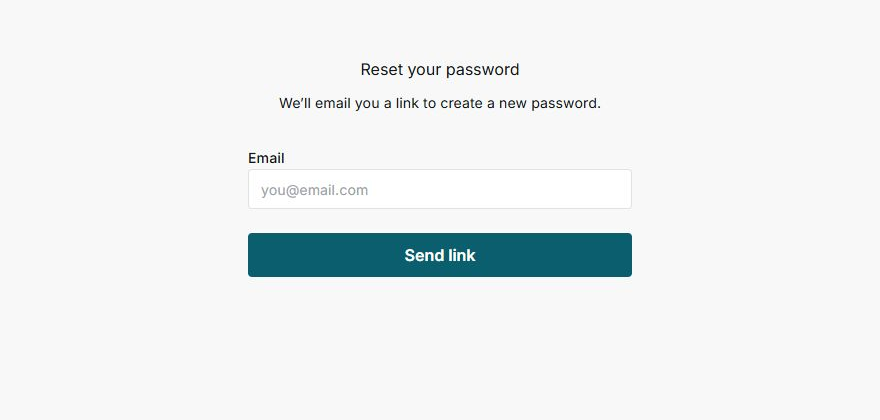
The link lets you create a new password and sign in again.
3. If you sign in through an invitation
- Find the invitation email sent by your team.
- Use the most recent link; older links may stop working.
- If the link no longer works, ask an Owner/Admin to send another invitation.
Avoid duplicates
If you were already invited to a business, do not use “Sign up” to enter that same team.
4. Messages you may see
These messages help you decide what to do next.
- Loading
Means: Impulso Pro is checking your request. Next step: wait a few seconds. Does not mean: you should press the button repeatedly.
- Error
Means: Impulso Pro could not complete sign-in. Next step: check your email, password, or recover access. Does not mean: your business was deleted.
- Sign in required
Means: the area you tried to open needs you to sign in first. Next step: sign in and try again. Does not mean: you lost your account.
5. When to ask for help
Ask for help if you already tried password recovery, checked spam, and still cannot sign in.
- Include the email you are trying to use.
- Include your business name.
- Say whether you use password, Google, or invitation access.