

Before you start
- Have access to the email you used to create the account.
- Use the same sign-in option you chose when signing up: email and password or Google.
- Do not create another account if you already started sign-up with a business email.
- If your team invited you, use the invitation link instead of signing up from scratch.
1. Create your account
- On the Create your account screen, enter your Email and a Password.
- If you prefer Google, choose Continue with Google and keep using that same option when you come back.
- When everything is ready, click Start free trial.
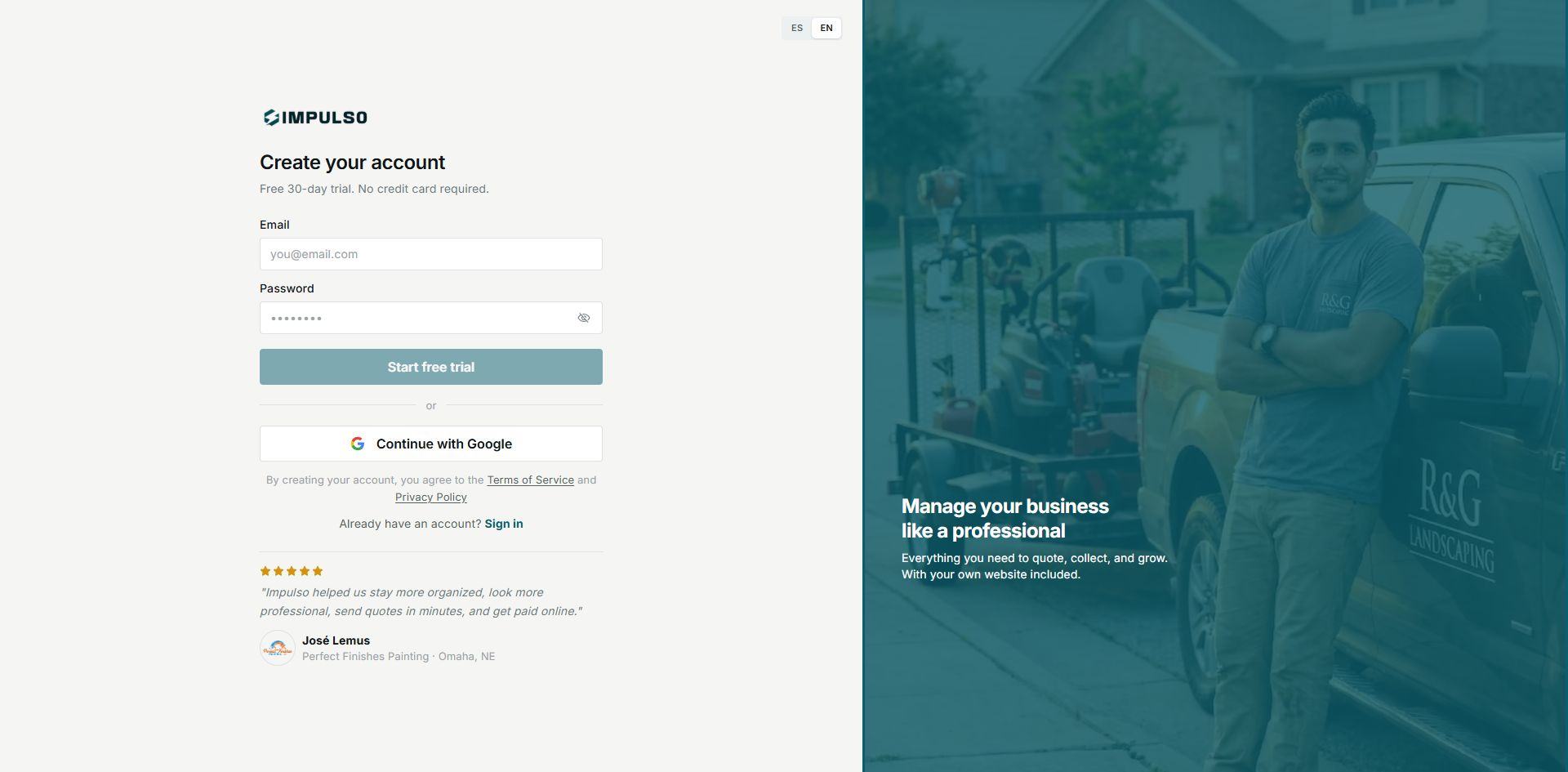
The sign-up screen shows the free 30-day trial and confirms that no credit card is required.
2. Confirm your email
- After starting sign-up, review the Check your email screen.
- Confirm that the email shown is correct.
- Open the Impulso Pro message in your inbox and use the newest link.
- If you do not see it, check spam, promotions, or junk before asking for another message.
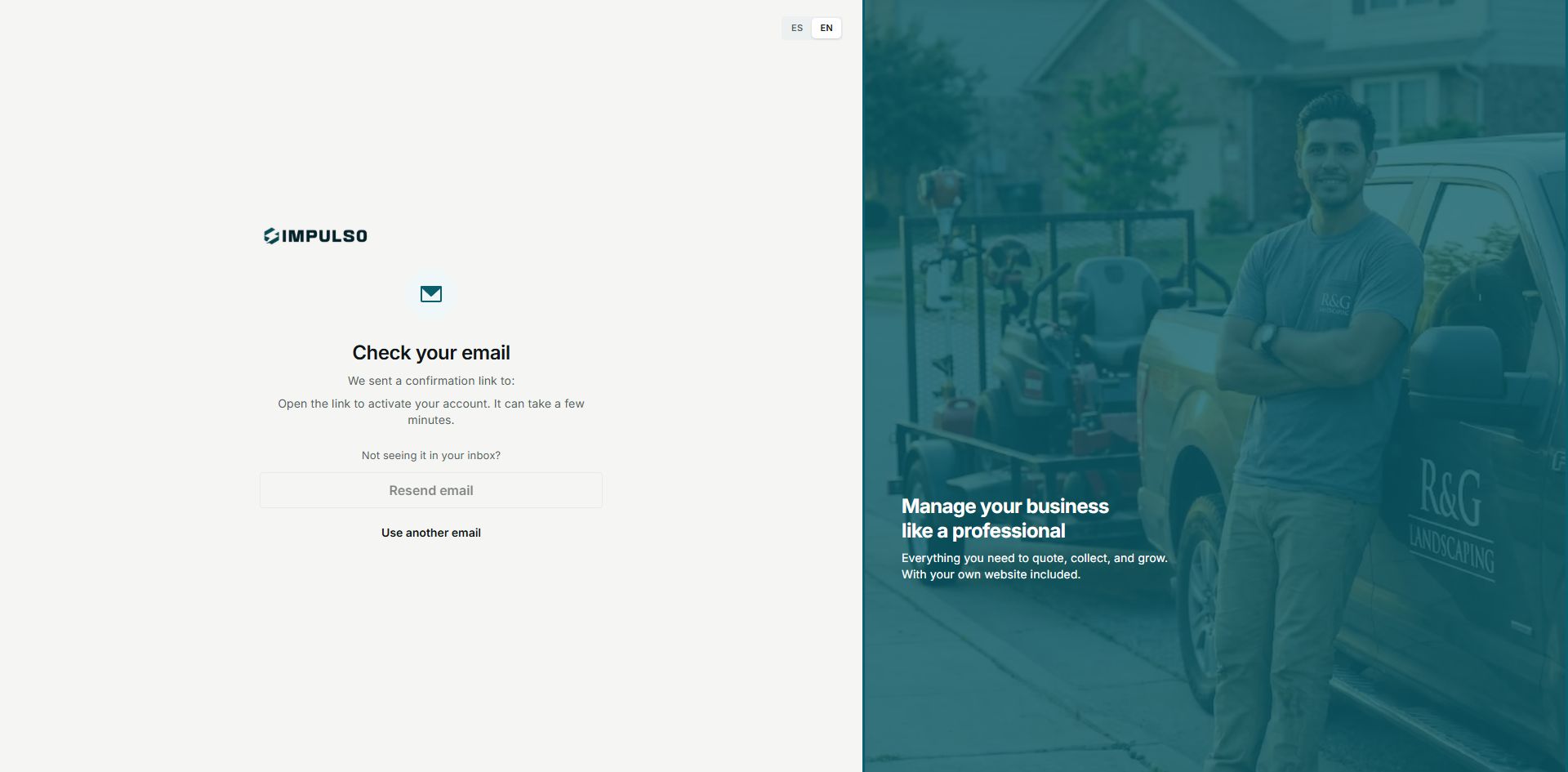
The screen shows the email that needs confirmation and the options Resend email and Use another email.
3. Return to Impulso Pro
- After confirming your email, return to Impulso Pro.
- If the app asks you to sign in again, use the same email or the same Google account.
- Continue with the first setup step shown on screen.
- If you do not see a setup screen, sign in from the normal sign-in page.
4. If something does not move forward
- Check that your email is spelled correctly.
- Wait a few minutes before asking for another email.
- Use Use another email if you entered the wrong email.
- If you already confirmed your email and cannot enter, use Sign in from the access screen.
5. States you may see
These states can appear during sign-up or email confirmation.
- Form ready
Means: you can complete sign-up. Next step: review the details and continue. Does not mean: the account is active yet.
- Email pending
Means: you still need to open the confirmation email. Next step: look for the Impulso Pro message. Does not mean: sign-up failed.
- Resend unavailable
Means: you cannot ask for another email from that screen yet. Next step: wait a few minutes or use another email if needed. Does not mean: you will not receive the message.
- Loading
Means: Impulso Pro is processing the step. Next step: wait without pressing the button several times. Does not mean: you need to close the screen.
- Error
Means: something could not be completed. Next step: check the email, try again, or ask for help. Does not mean: you lost the account.