

Before You Start
- Use short tags your team can recognize immediately.
- Think in day-to-day categories: roofing, HVAC, commercial, warranty, or follow-up.
- Do not use tags to store private information such as passwords, banking details, or sensitive notes.
- Adding, removing, or creating a tag changes that customer right away.
1. Open the Customer
- Go to Customers.
- Search by name, phone, email, or company.
- Open the customer detail page.
- Check whether tags already appear next to the customer name.
When the customer does not have tags, Impulso Pro shows the Add tag button so you can start.
2. Open Add Tag
- Click Add tag.
- Use Search tags... to find an existing tag.
- If the right tag does not exist, type a new name under Create new tag.
- Choose a color that helps your team recognize the category.
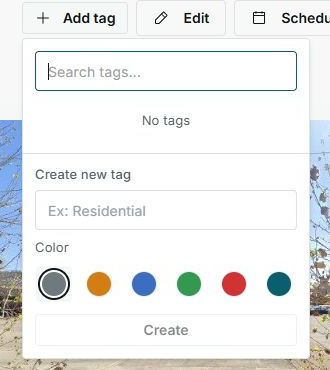
The screenshot shows the no-tags state. No tag was created or assigned during verification.
3. Use Colors With Intention
Colors help your team scan customers quickly. Use a small set of meanings and keep them consistent.
| Suggested use | Examples | Why it helps |
|---|---|---|
| Service type | roofing, gutters, HVAC, exterior painting | Helps you recognize the kind of work the customer usually needs. |
| Business relationship | VIP, builder, property manager, commercial | Helps prioritize important or recurring accounts. |
| Next action | warranty, estimate follow-up, maintenance plan | Makes context visible before calling, quoting, or scheduling. |
4. Actions That Change the Customer
- Clicking an existing tag adds it to or removes it from the customer.
- Creating a new tag saves it and applies it to the customer.
- If a customer already has many tags, Impulso Pro may stop you from adding more.
- In the customer list, Impulso Pro shows up to two visible tags and an indicator such as +1 when there are more.
Recommendation
Before creating a new tag, search for a similar one. That helps avoid duplicates like roofing, Roof, or Roofs.
5. States You May See
These labels help explain what you see on the customer and inside the tag panel.