

Before You Start
- History is reviewed from the customer detail page.
- The Activity card separates pending work from closed work.
- Do not open a quote, invoice, job, or follow-up if you only need the summary.
- If there is no history, Impulso Pro shows No closed history.
1. Open the Customer
- Go to Customers.
- Search by name, phone, email, or company.
- Open the customer detail page.
- Find the Activity card.
2. Switch to History
- In Activity, review the Open count.
- Click History.
- Read the count next to History to see how many closed items exist.
- If a list appears, review type, name, date, amount, and status before opening anything.
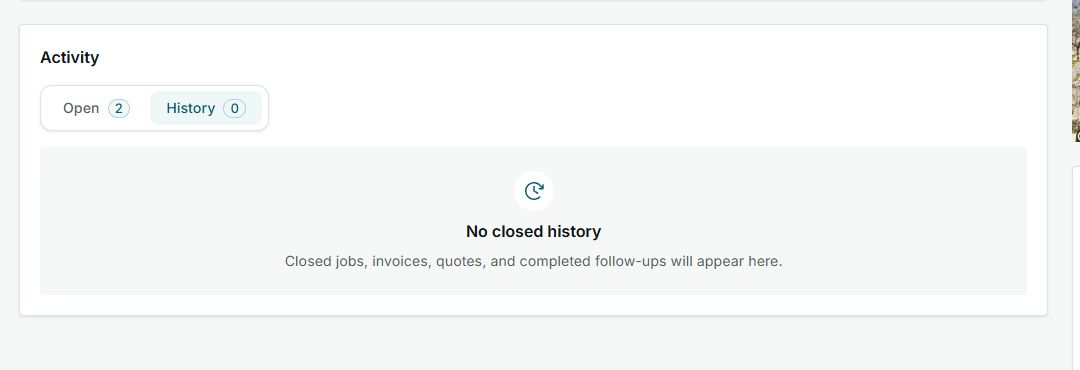
The screenshot shows a customer with no closed items. No quote, invoice, job, or follow-up was opened.
3. What Can Appear in History
| Type | When it appears | What to check |
|---|---|---|
| Closed job | When the job has finished or been closed. | Job name, next visit if relevant, and final status. |
| Invoice | When the customer has an invoice. | Number, due date, amount, and payment status. |
| Quote | When a quote is already closed or resolved. | Title, valid-until date, amount, and status. |
| Completed follow-up | When a reminder has been completed. | Follow-up type, date, and context. |
4. When to Open an Item
- Open an item only when you need the full detail.
- Use the summary when you only need to confirm past activity.
- If History is empty, check Open to see what is still pending.
- If something closed needs correction, review the detail before editing.
5. States You May See
These labels explain the Activity card summary.