

Before you start
- Open Impulso Pro from a computer.
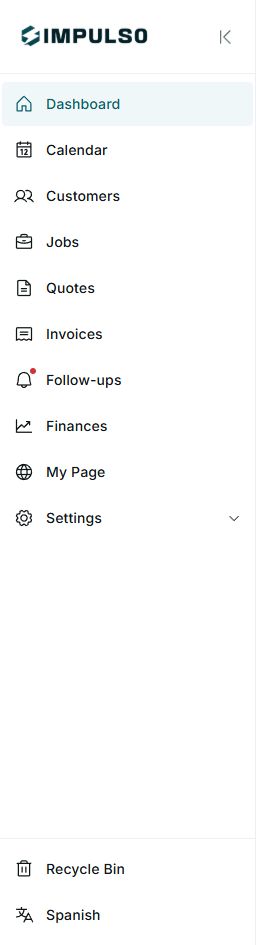
- The sidebar groups the main parts of your business.
- The top controls help you search, open Impulso AI, review alerts, and get help.
- Some options can change depending on your role, plan, or company settings.
1. Read the sidebar
- Use Dashboard for the business overview.
- Open Calendar to review visits and scheduling.
- Use Customers, Jobs, Quotes, and Invoices for the sales and service workflow.
- Open Follow-ups to review pending reminders.
- Use Finances for expenses, collections, and financial visibility.
- Open My Page to review the public business page and leads.
2. Use the top controls
- Click Search... to find customers, jobs, quotes, or invoices.
- Open Impulso AI when you want help reviewing information or preparing an action.
- Use the bell to review pending alerts.
- Click the help icon when you need support or additional guides.

This screenshot focuses on controls and hides personal account details.
3. Open Settings
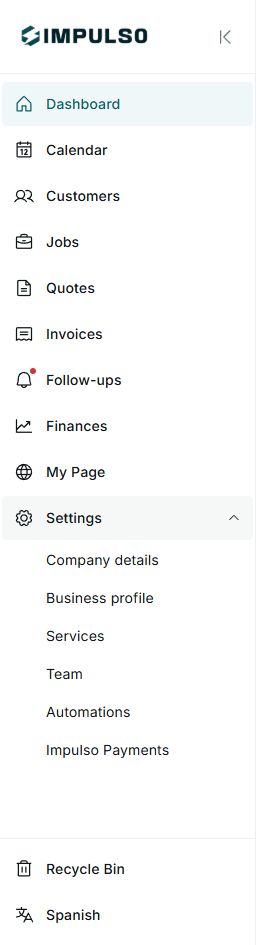
- Click Settings in the sidebar.
- Choose Company details for general business information.
- Use Business profile to review how the company is presented.
- Open Services to manage services like roofing, HVAC, gutters, drywall, or exterior painting.
- Use Team, Automations, and Impulso Pro Payments when your role allows you to manage those options.
5. States you may see
These signals help you understand what needs attention and what only describes your account, plan, or permissions.
- Active
Means: you are in that sidebar area. Next step: work from that screen or choose another option. Does not mean: anything was saved or sent.
- Red dot
Means: that area has something pending to review. Next step: open the section if you want to handle it. Does not mean: the whole business has a problem.
- Bell count
Means: there are pending alerts. Next step: open the bell to read them. Does not mean: those alerts are already resolved.
- New
Means: an option, alert, or record is recent. Next step: review it before assuming it needs action. Does not mean: you must change data right away.
- Unread
Means: that alert has not been reviewed yet. Next step: read it when you have time. Does not mean: the job is late.
- Owner/Admin only
Means: the option appears only for roles with management permission. Next step: ask the owner for access if you need to work there. Does not mean: your account is broken.
- Trial
Means: the company may be in a trial period. Next step: review the plan if you need paid features. Does not mean: your data will be deleted.
- Current plan
Means: Impulso Pro is showing the company's active plan. Next step: review payments if you need to change it. Does not mean: a new charge was made.
- Suggested
Means: Impulso Pro recommends an action. Next step: review it before applying it. Does not mean: Impulso Pro will do it without your confirmation.