

Before you start
- Describe the issue in simple words with one concrete action.
- Include real customer, job, quote, or invoice names when they help identify the case.
- Use normal business terms such as roofing, HVAC, invoice, or job when that is how your operation names the work.
- Do not include passwords, private codes, banking details, or information that is not needed.
1. Write a clear subject
- Summarize the issue in one short phrase.
- Name the main action: sending an invoice, opening a quote, reviewing a payment, or finding a customer.
- Add the type of work if it helps, such as roofing or deep cleaning.
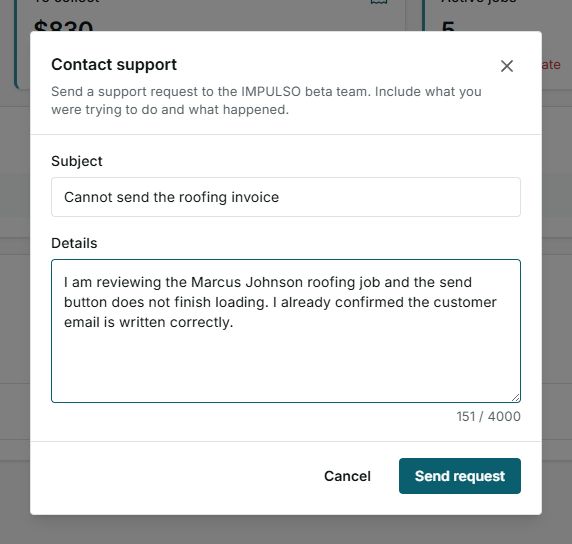
2. Add details support can use
In Details, write enough for support to understand the case without asking for the same information again.
- What you were trying to do: for example, send a roofing invoice.
- Where you were: customer, job, quote, invoice, calendar, or settings.
- What happened: the button did not finish loading, an option was missing, or a message appeared.
- What you expected: the invoice to send, the job to open, or the change to save.
- What you already checked: customer email, date, amount, service, or permissions.
3. What not to include
- Do not write your password.
- Do not share private access or verification codes.
- Do not paste full banking details.
- Do not add customer information that is unrelated to the issue.
- Do not send an empty or overly broad message like "it does not work".
4. Where to open the request
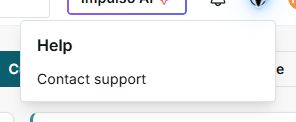
- Click Help in the top right.
- Choose Contact support.
- Complete subject and details before sending.
5. States and controls you may see
The verified version shows subject and details. Category and priority did not appear in this form.
- Send request disabled
Means: subject or details are missing. Next step: complete both fields. Does not mean: you cannot ask for help.
- Send request
Means: the message is ready to send. Next step: make sure it has the right context before sending. Does not mean: it was already sent.
- Sent
Means: the request reached the Impulso Pro team. Next step: wait for a reply or follow-up. Does not mean: the issue is already fixed.
- Error
Means: the request could not be sent at that moment. Next step: check your connection and try again. Does not mean: the team already received the message.
- Cancel
Means: closes the form without sending. Next step: use it if you still need to edit or decide. Does not mean: a draft is saved for later.